AI voice sales trainer
The most difficult client
now — gym equipment.
Managers speak by voice with an AI client who hesitates, interrupts and objects. Seconds after the call — a score, mistakes with quotes and a plan on what to train next.

22
AI customer voices
6
supported languages
Seconds
for post-call debriefing
3
platforms: iPhone, Android, web
Three steps from script to
confidence
01
Select the customer
Finance director calculating payback, café owner after blackouts, or tech sceptic — or create your own.
02
Speak up
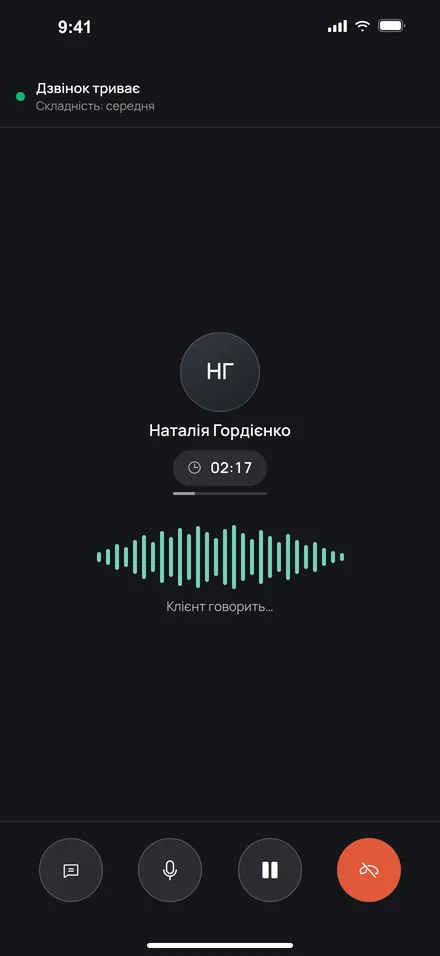
The client responds with a live voice, pushes, and only yields to strong arguments. The transcript is in real time during the conversation.
03
Get the breakdown
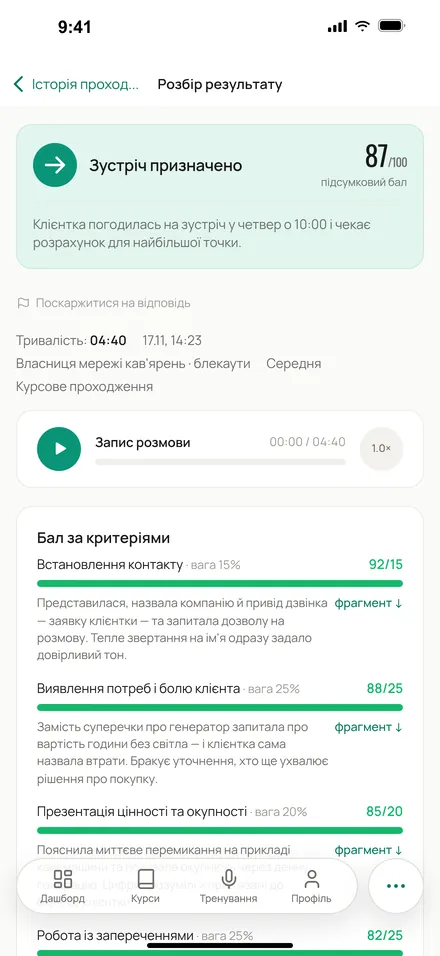
Score according to your company's criteria with explanations, analysis of mistakes with quotes from the conversation, and the full transcript.
Everything that happens after «Hello»

Conversation like with a real person
Voice, pauses, interruptions and objections — the AI client behaves just like your real customer.
- 22 voices and characters
- Difficulty levels range from friendly to hardcore
- Live transcript
Analysis of every conversation in seconds
Without waiting for a manager: assessment according to your criteria right after the call.
- Score and weight of each criterion
- Errors with quotes from the conversation
- Recording and transcript

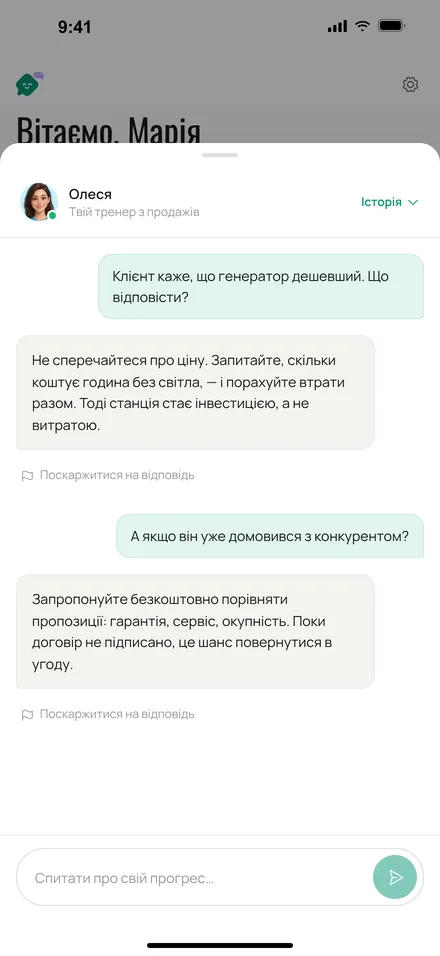
Olesya is a personal AI coach
It tracks each manager's progress and suggests what to train next. You can simply ask.
- Insights from your calls
- Answers to sales questions
Courses leading to a settlement
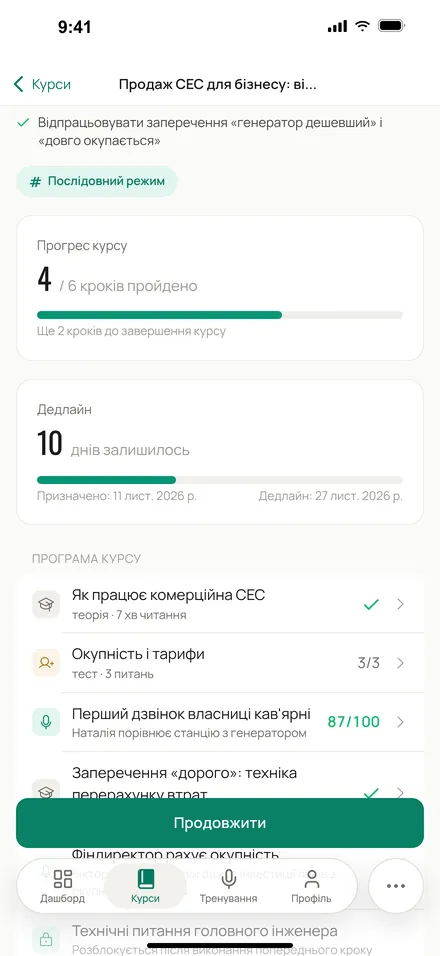
Theory, test and voice practice in one path – with progress and deadlines.
- Management courses
- Repeating complex steps
- Preparation for a real-life meeting
For leaders who want to see, not
guess
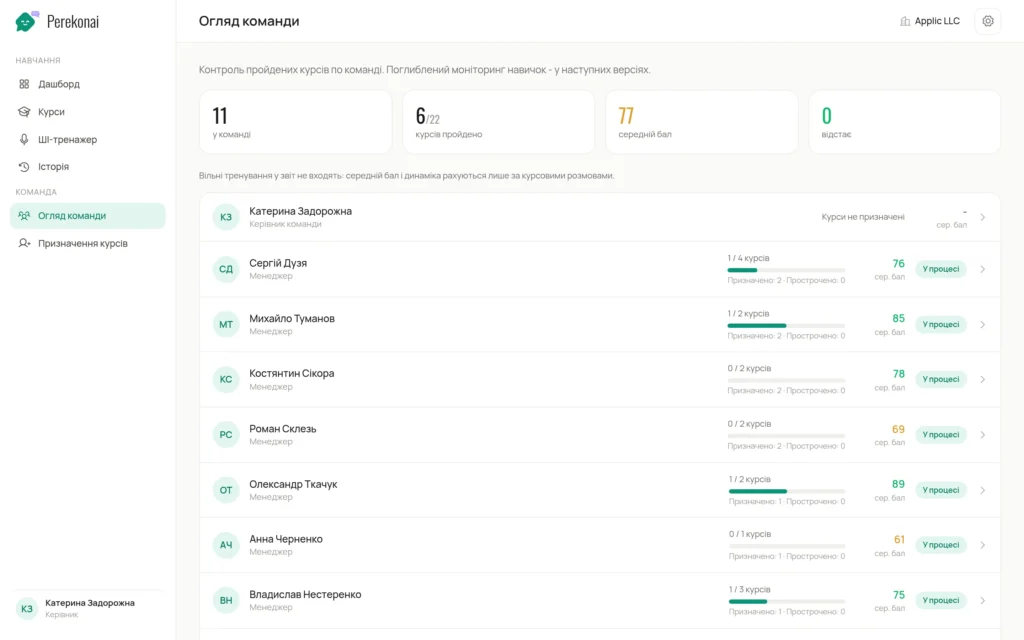
The team's progress is crystal clear
Average score, completed courses and the progress of each manager. It is clear who is ready for difficult negotiations and who needs practice.

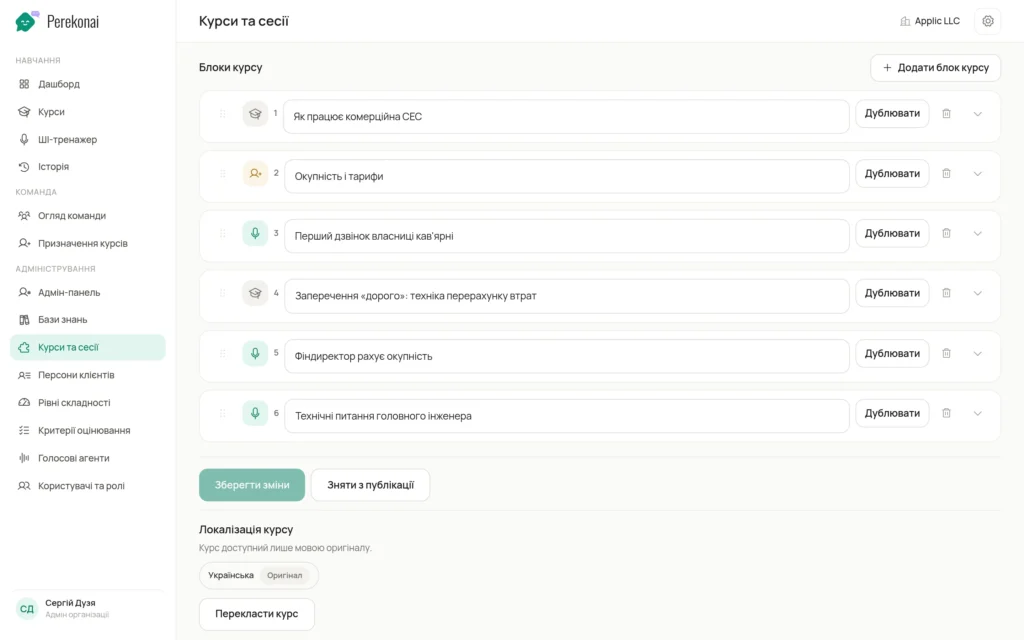
No-code course builder
Gather materials, tests and voice training in the required order. Assign courses with deadlines.
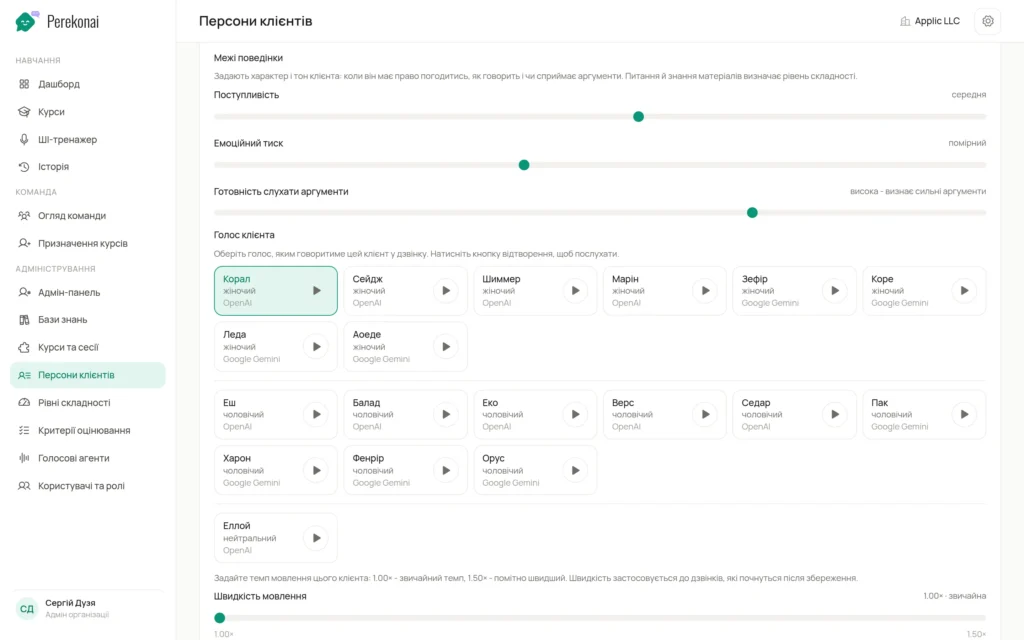
AI client for your market
Character, level of pressure, readiness to compromise, voice and knowledge from your database — can be customised down to the smallest detail.
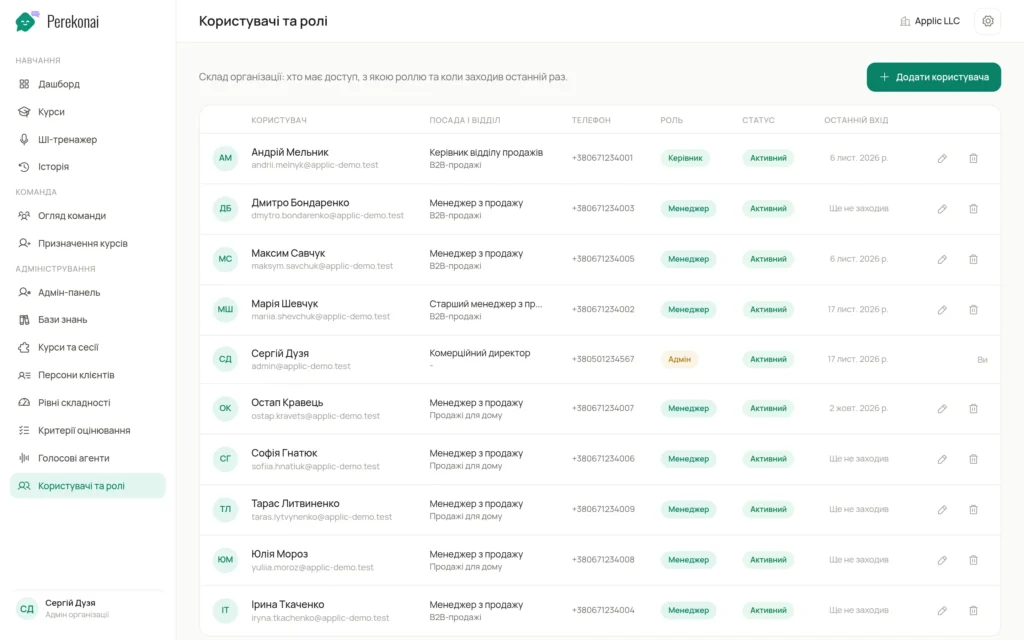
The whole company in one place
Roles, departments, positions and permissions. The administrator manages everything even from a phone.
Works with ChatGPT and
Claude
Connect Perekonai to Claude or ChatGPT. Describe in words what course or training client you need, and the assistant will create them in your organisation.
You
Create a 4-step course: handling the «too expensive» objection for B2B managers

Connected Perekonai
Assistant
Done. The course «Objections: Expensive» with material, a test and two voice workouts is in the «Courses» section of your organisation.
Questions and
Answers
What do I need to get started?
Register your organisation with an email or via Google — you will become its administrator. Then invite colleagues in the «Administration → Users and roles» section: each will receive an email with a link and will complete registration themselves.
On what devices can you work out?
In a browser on a computer or phone with a microphone, as well as in the iPhone and Android app using the same account. You cannot buy or change your tariff in the app.
What language is the client speaking?
In Ukrainian, English, German, French, Italian or Spanish. In a course, the language is set by the administrator for each voice step, while in free practice you choose it before the call. The interface is available in the same six languages.
Does the AI take our materials into account?
Right. The administrator uploads documents to the «Knowledge Bases» (PDF, DOCX, TXT, MD, CSV and others, up to 20 MB each), and the base is added to a course voice step or free practice. The client receives a concise summary of it, and the assessor checks after the call whether you distorted or omitted anything.
How are conversations evaluated?
Based on the criteria and weights configured by the administrator in «Administration → Evaluation criteria» (up to 10 criteria, total weight 100%). After the call, you see the final score out of 100, the score and explanation for each criterion, a breakdown of mistakes, and the conversation transcript.
Who can see my chats?
You, your manager, and your organisation's administrator. Before the first session, consent to record and analyse conversations is required — without it, voice sessions will not start, and it can be withdrawn in Settings → Privacy. Details are in Privacy Policy.
How do I connect ChatGPT or Claude?
Click «Open Claude Connectors» or «Open ChatGPT Connectors» in the banner on the dashboard, add the Perekonai connector, log in and choose the organisations it will work with. Features depend on your role — from meeting preparation to creating courses and personas; the connector is not available on all subscription plans.
The login code is not arriving
The code is sent to the email account and is valid for 10 minutes. Check the spam folder and click «Resend code» — the button becomes available after one minute; after 5 failed attempts, a new code is required. Signing in via Google does not require a code.
The invite link isn't working
The invitation is valid for 7 days, and after resending, the old link stops working—open the most recent email. If the time has expired, ask the administrator to click «Resend invitation» in «Administration → Users and roles». If you have already accepted the invitation, just sign in.
The client can't hear me
Allow microphone access: click the padlock icon in the browser address bar and repeat the «Sound Check», and in the app, enable the microphone in Phone Settings → Perekonai. If the microphone is not found, check the connection or choose another one from the «Microphone» menu during the call. If you cannot hear the client and there is an «Unmute» button on the screen, click it.
The call was cut off. What should I do?
Do not close the page: «Reconnecting…» will appear, and the conversation will continue as soon as internet access is restored. You can return to the same conversation up to 5 times; if it is open in another window, please continue there.
The rating does not appear after the call
Usually the assessment is ready in up to 20 seconds; the screen can be closed — the result will appear in «History». If the assessment takes too long or fails, click «Assess again». Calls of up to 12 seconds, with two turns or fewer, or where only one party spoke are marked as «Conversation did not take place» and are not counted in the statistics.
Your minutes have run out. What's next?
The tariff plan restricts call minutes per cycle – for the entire organisation and for each user, and the limit is checked before a call starts. New sessions will become available from the next cycle, or the organisation administrator can change the tariff plan in Settings → Subscription.
How do I contact support?
Fill in the form on the page «Support» of this website or in the app: «Settings → Support». You will receive a request number in the format SR-XXXXXX, and the reply will be sent to your email.
The first training call is for
five minutes
Got a question? Write to us